

The RouteSavvy mobile app is designed to work in conjunction with the
RouteSavvy web application to complete routes, mark stops complete, send
automated notifications, capture signature and photo for Proof Of Delivery
(POD), GPS tracking and capture of fixed locations.
Android and iOS devices are both supported. If you have questions or issues please email support@routesavvy.com
Benefits
- Quick setup
- Easy to use
- Signature and photo capture for Proof Of Delivery (POD)
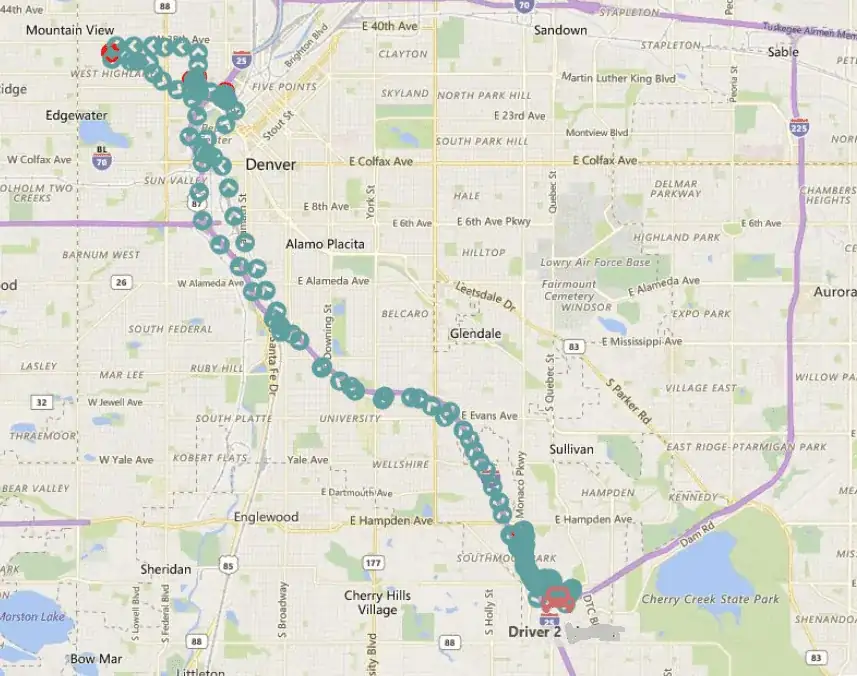
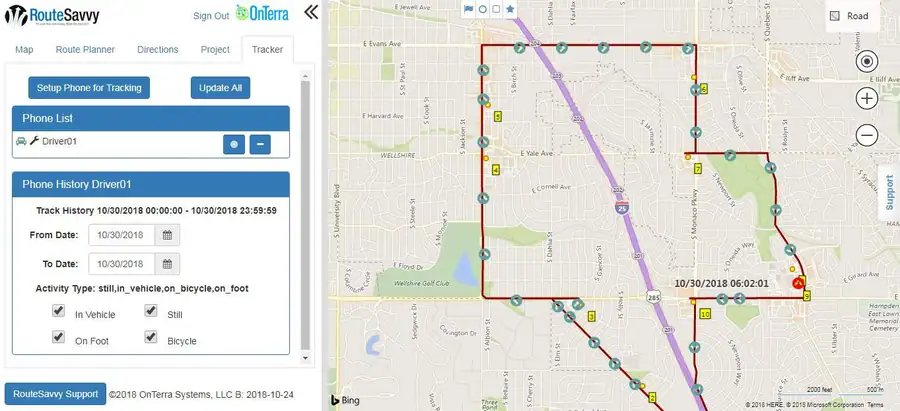
- GPS tracking
- Fixed locations capture
- Live, real-time email delivery confirmation
- See your route directly in RouteSavvy mobile app
- Mobile app optimized to reduce battery usage
To Get Started
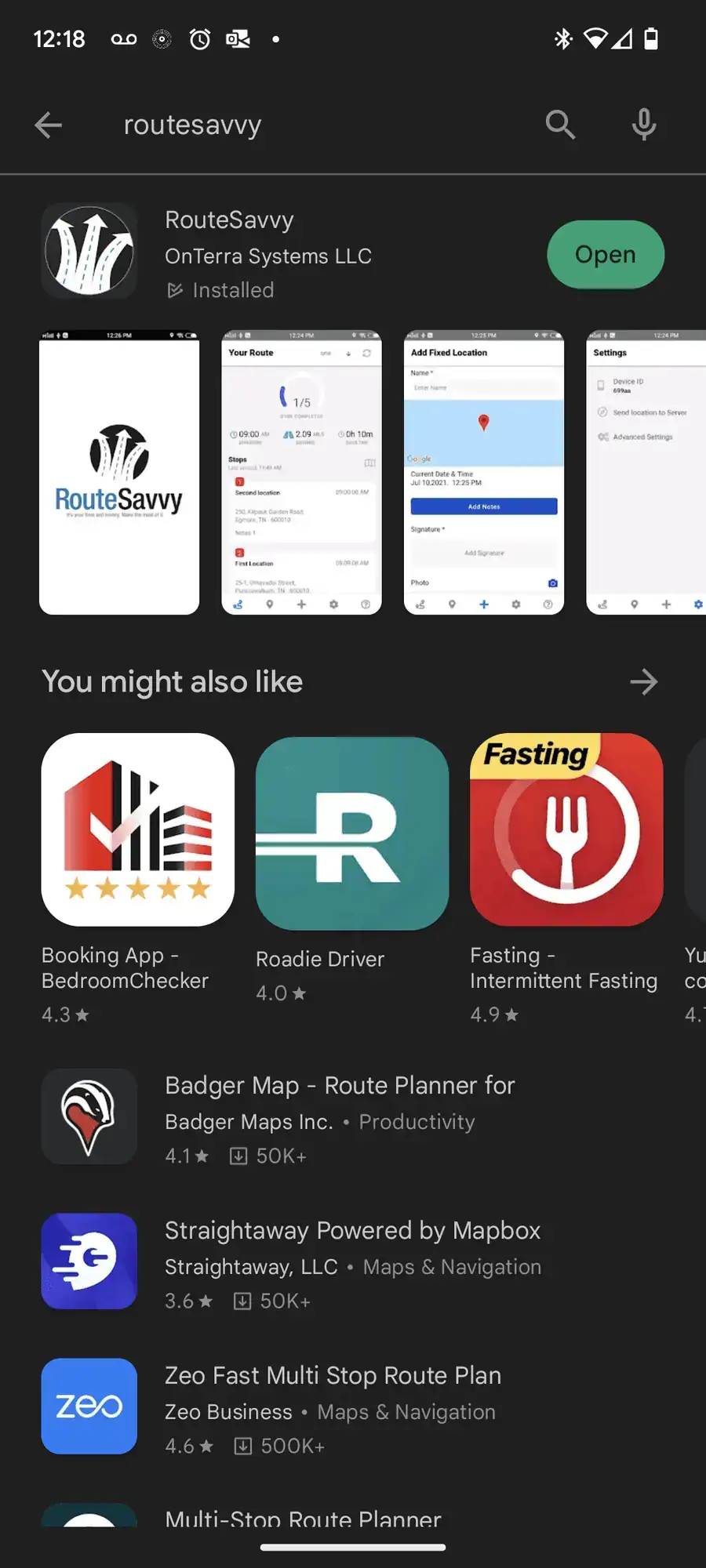
- Search the Android Play or Apple iTunes store for RouteSavvy (IMPORTANT NOTE – The RouteSavvy mobile apps are free, so avoid any similar apps asking for payment).
Example from Google Play for Android devices
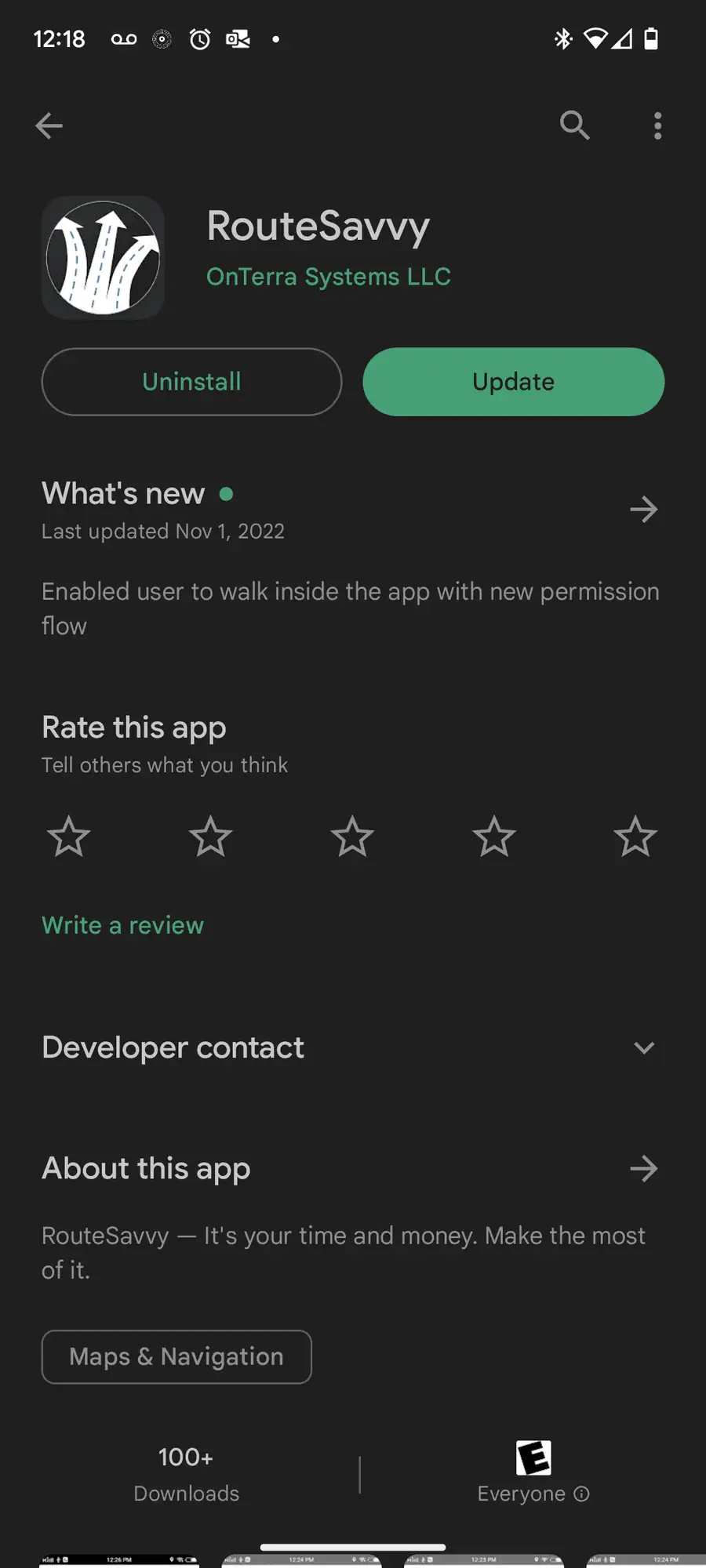
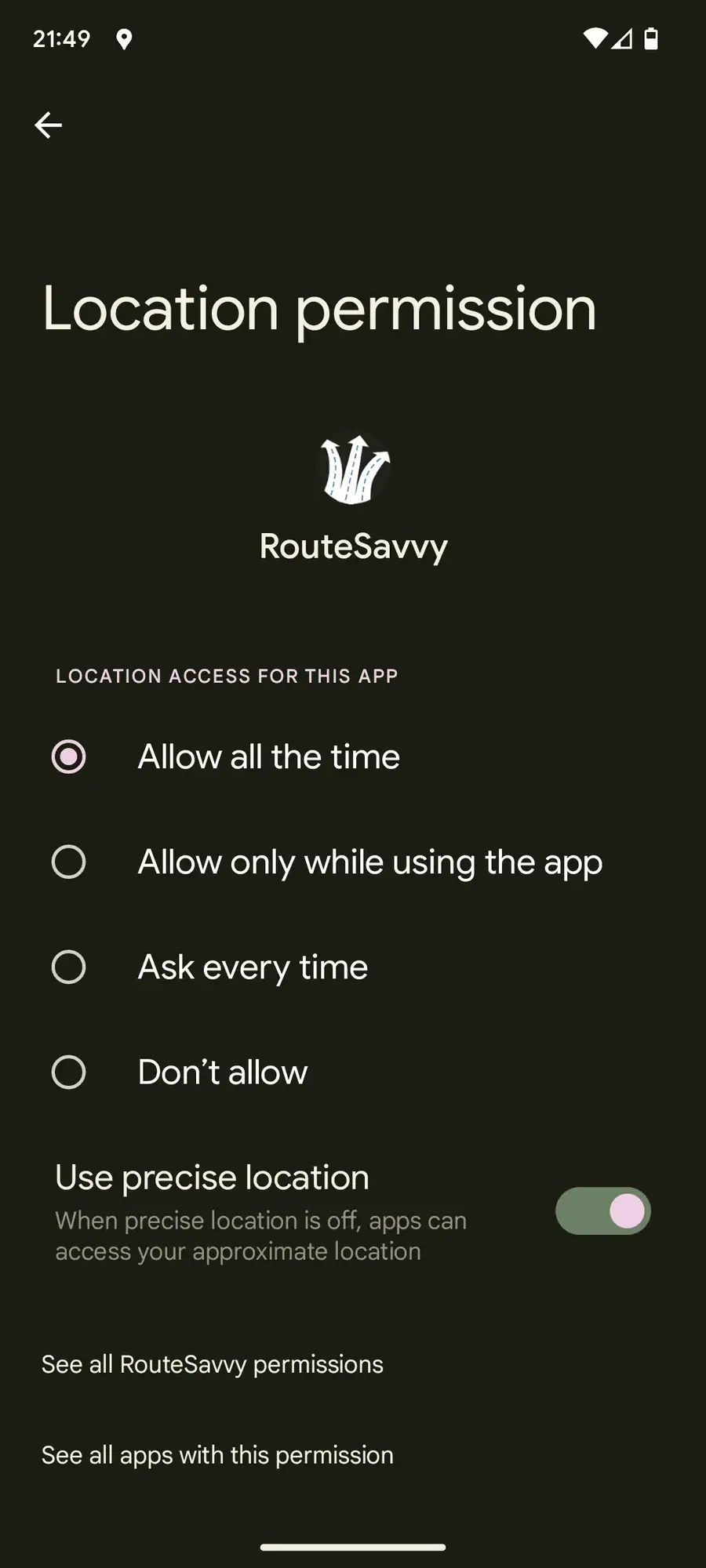
- Install RouteSavvy app and open. Please allow location permissions.
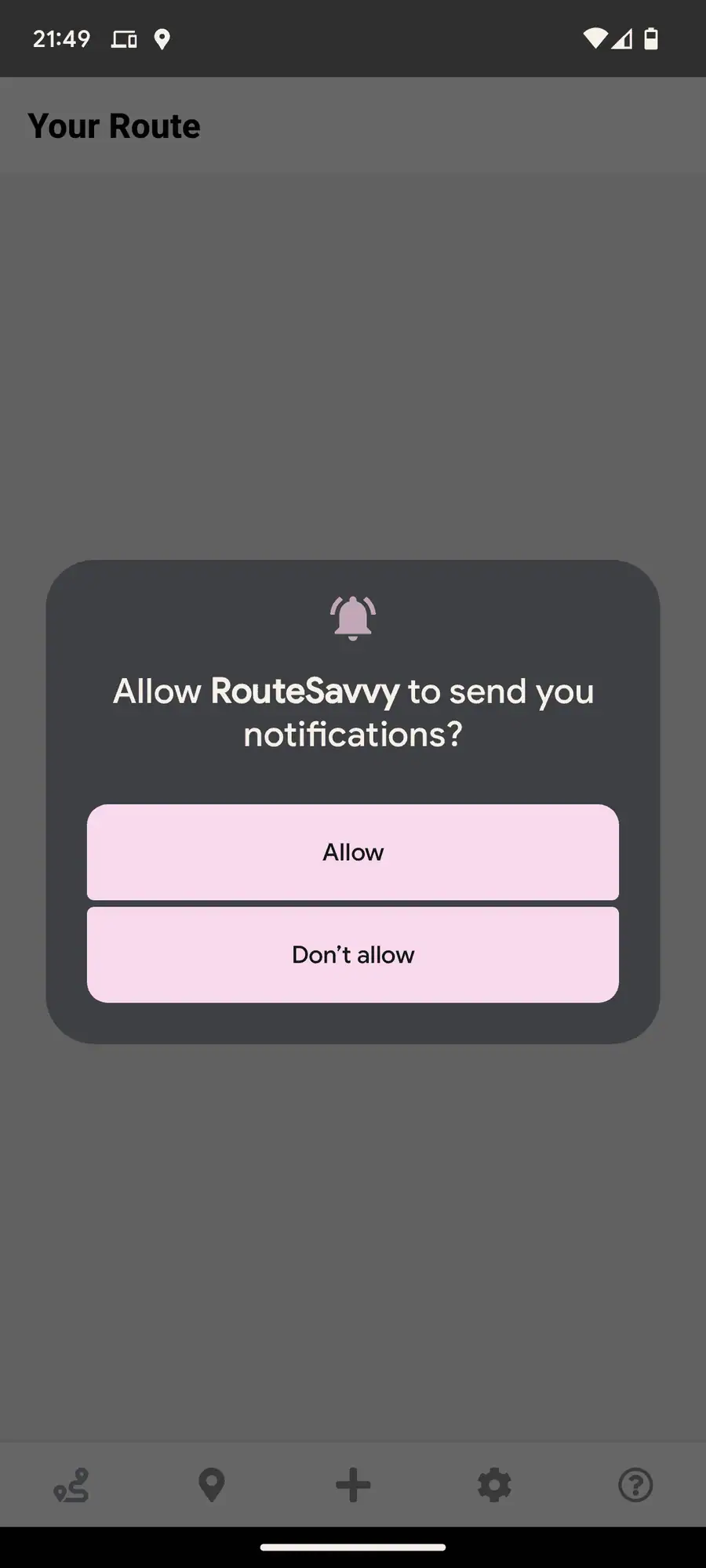
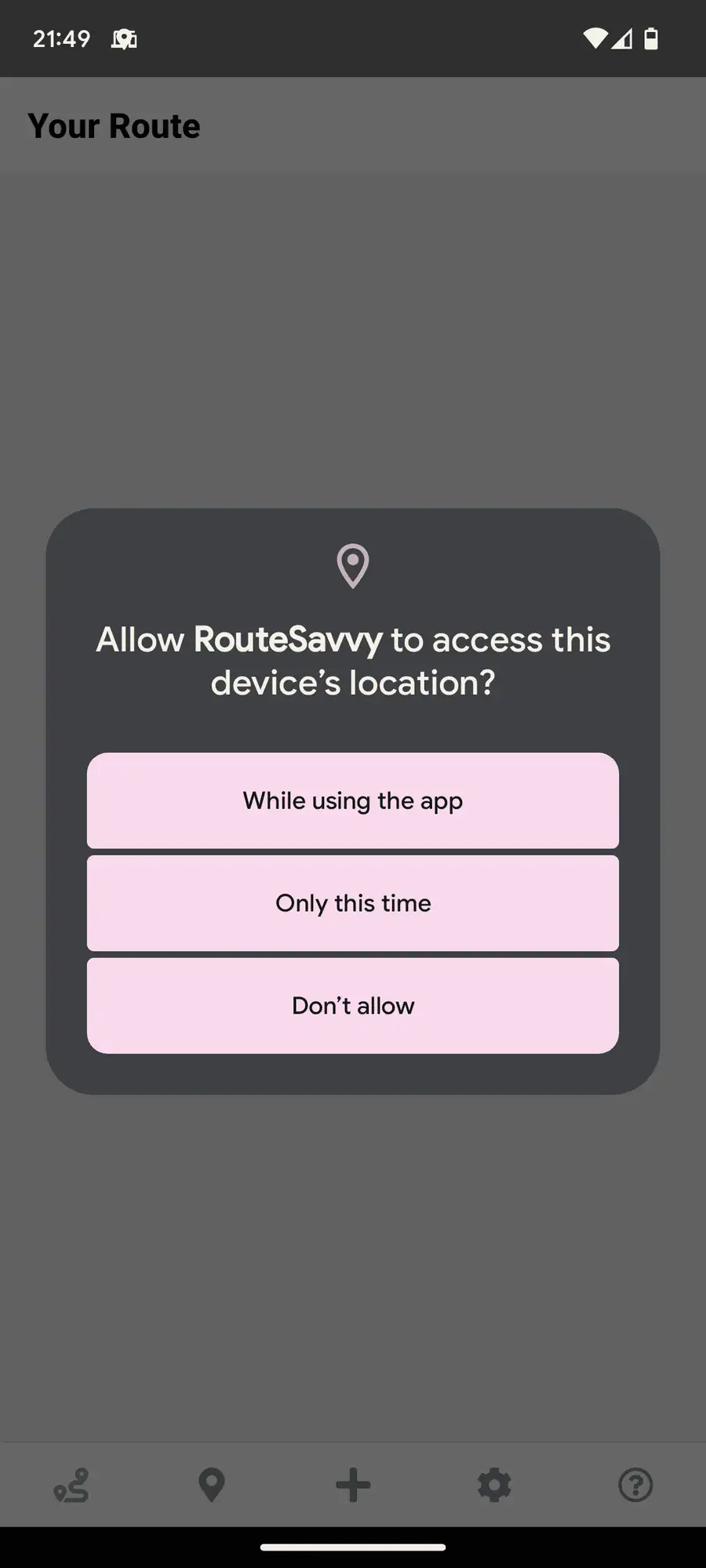
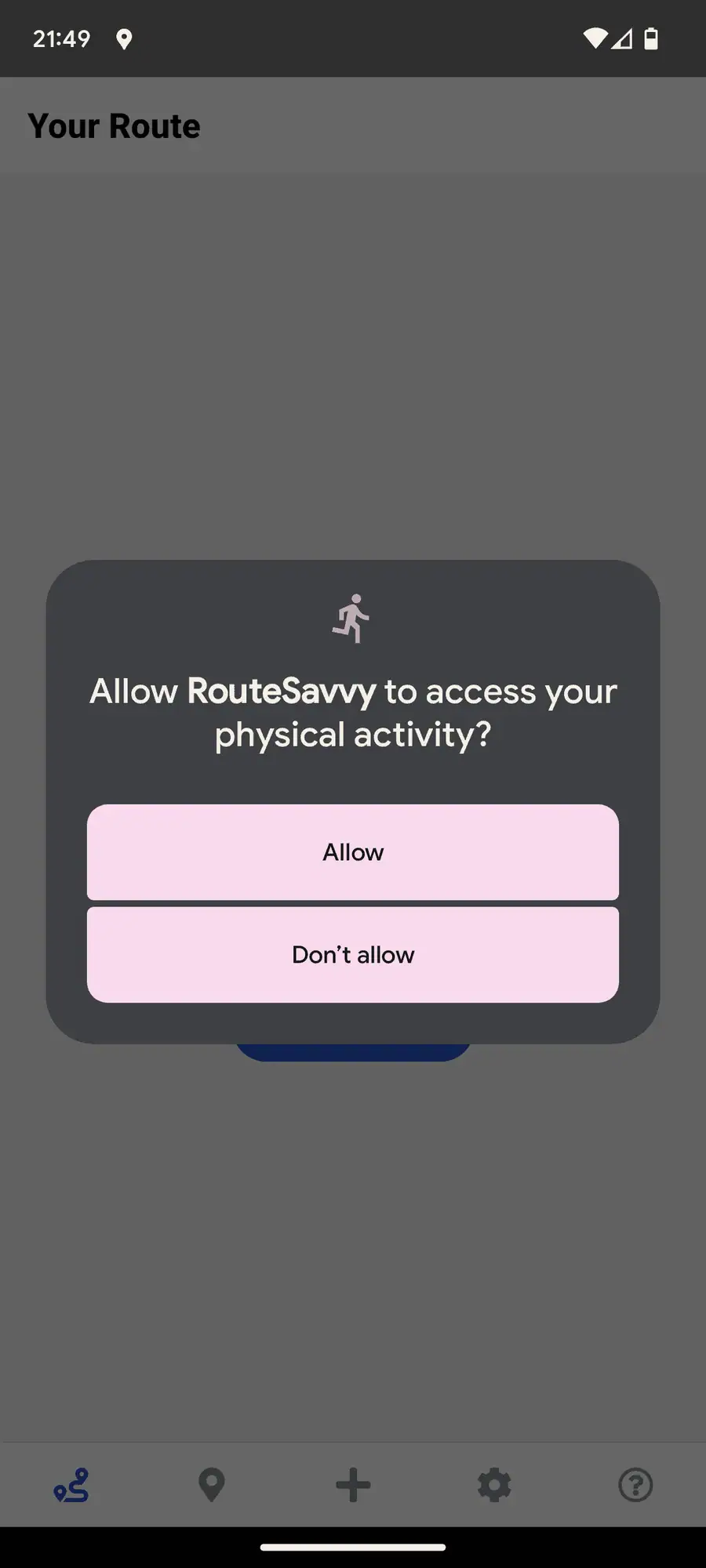
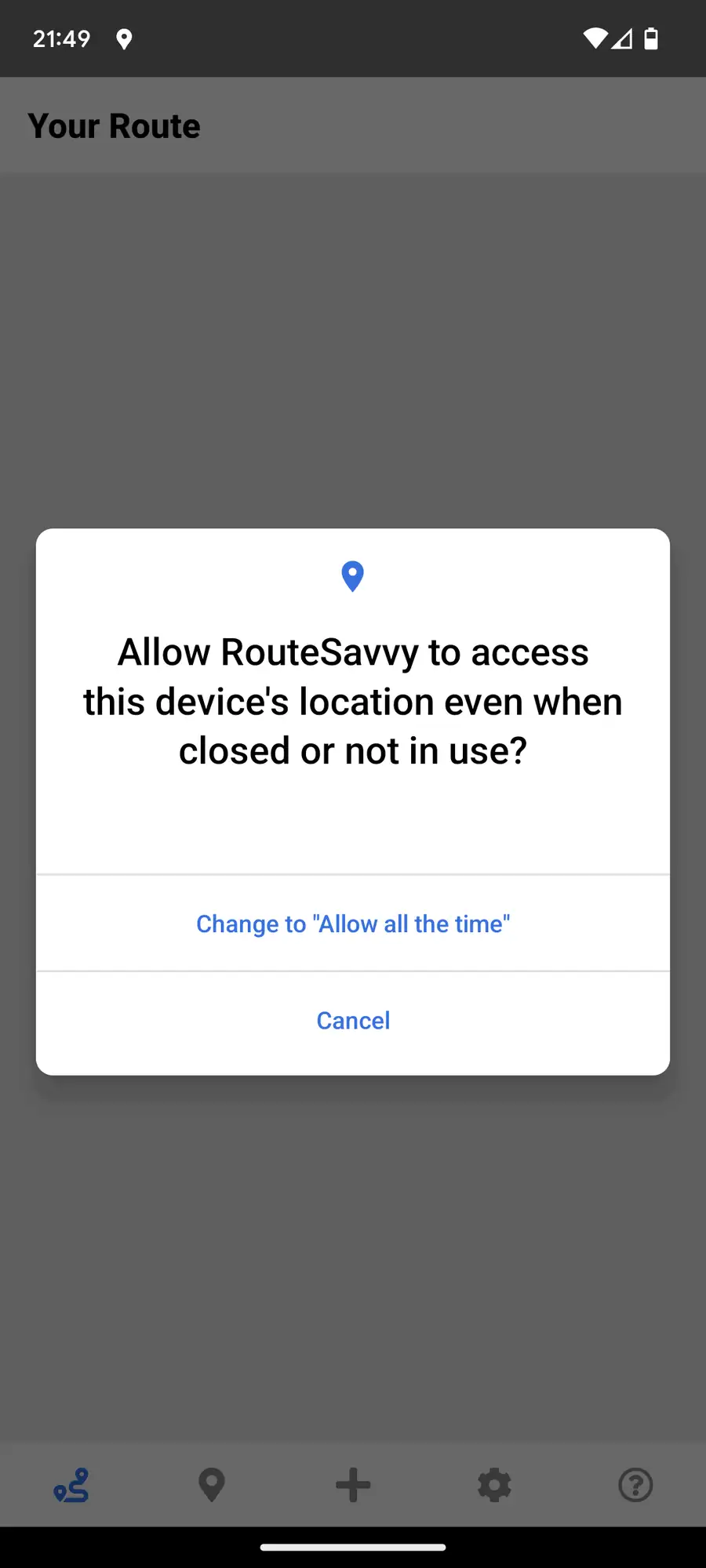
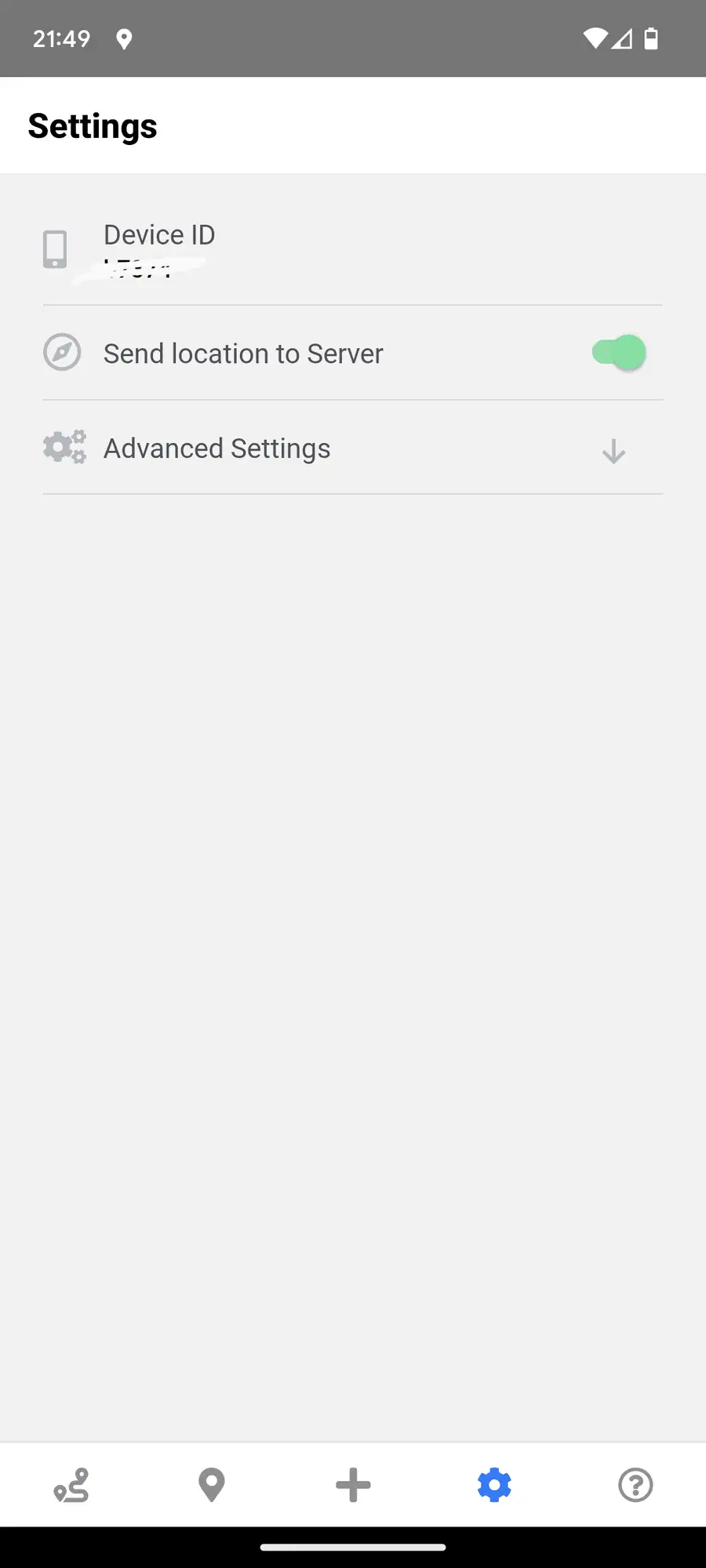
- In the RouteSavvy mobile app Settings, copy the Device ID from each phone you want to track. You can find your device ID in your Settings section. You will need to give this Device ID to your Route Planner (PLEASE NOTE, this is case sensitive).
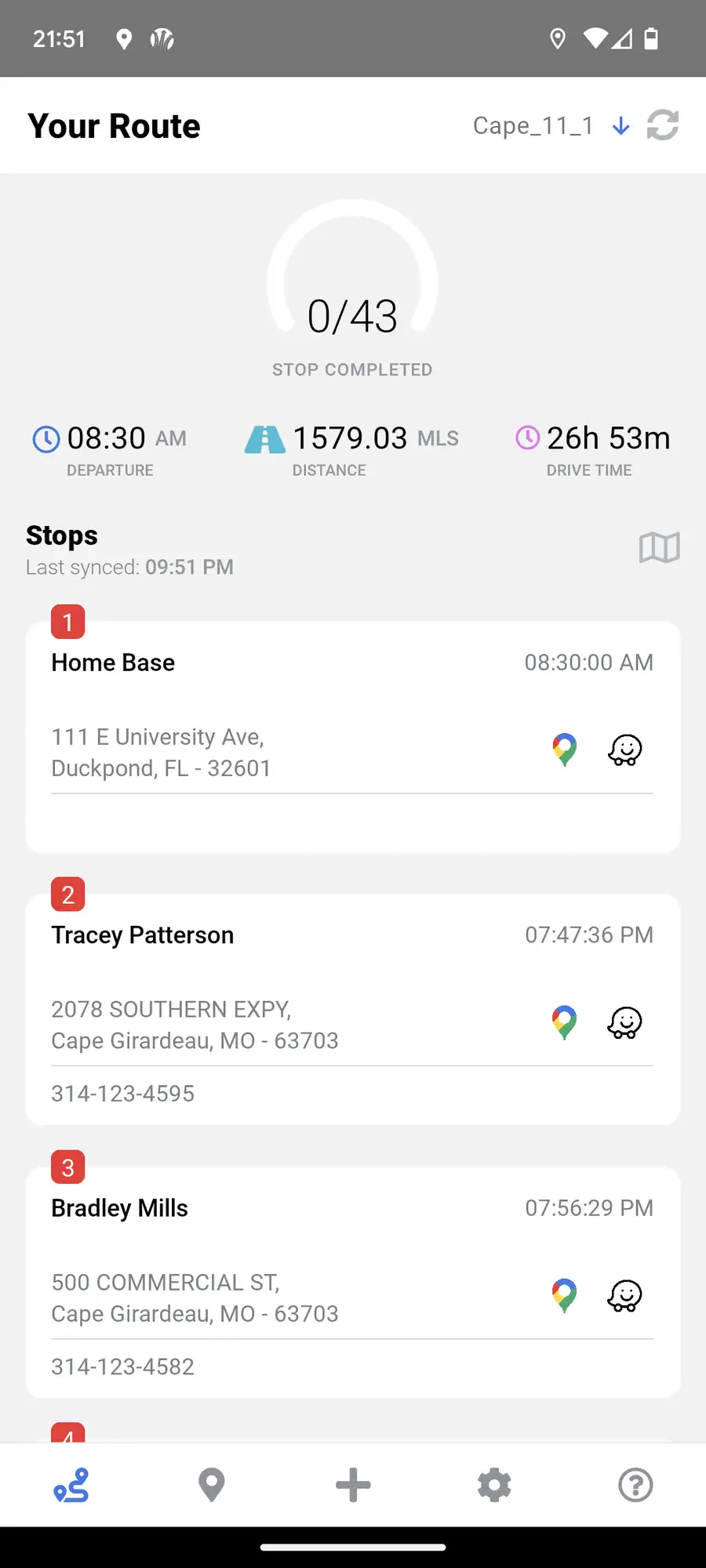
- Your Route Planner will send routes directly to the RouteSavvy Mobile App on your smartphone or tablet. If you have multiple routes, you can choose the route using the down arrow at the top right of the screen.
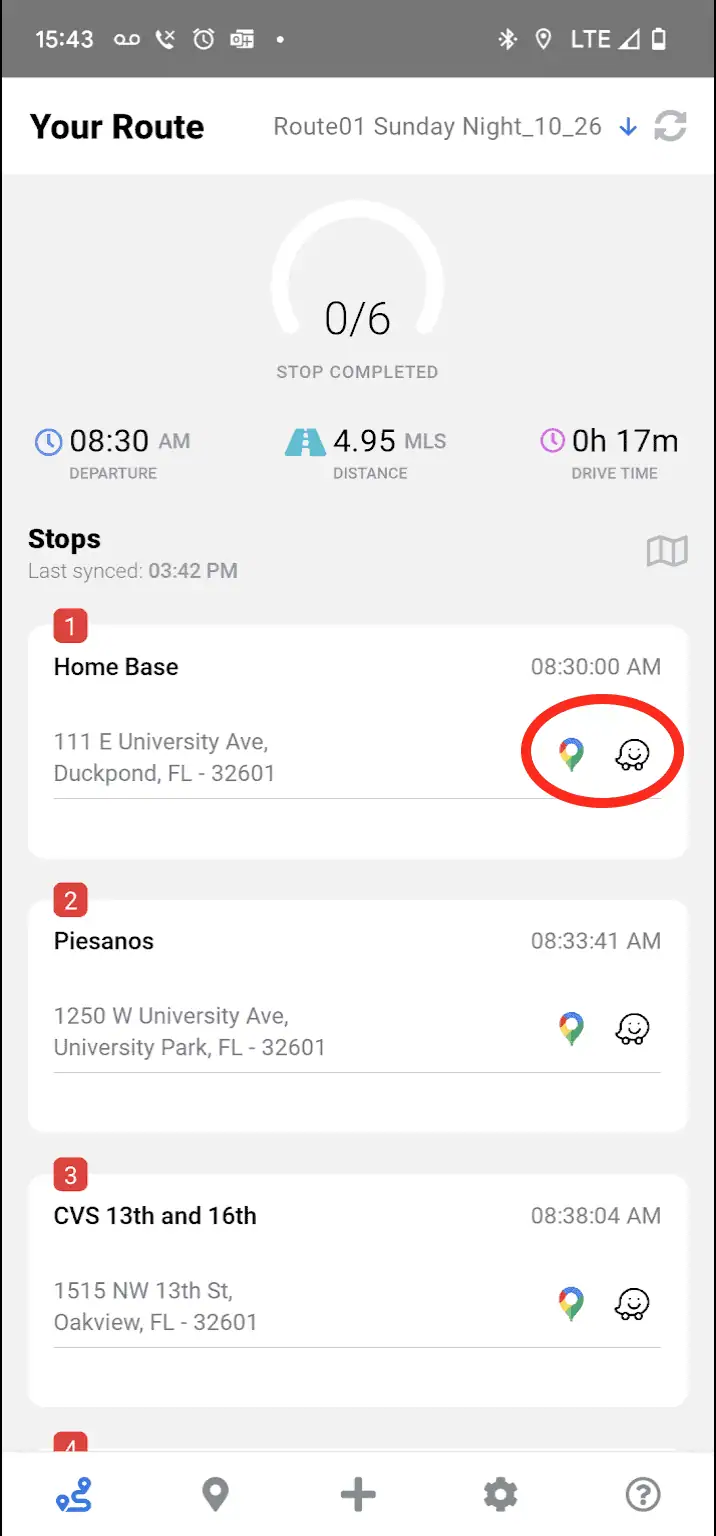
- Press the Google Map icon or the Waze icon to navigate.
- Press on the address itself to mark the stop as complete. At the next screen, press the "Mark Stop Complete" button.
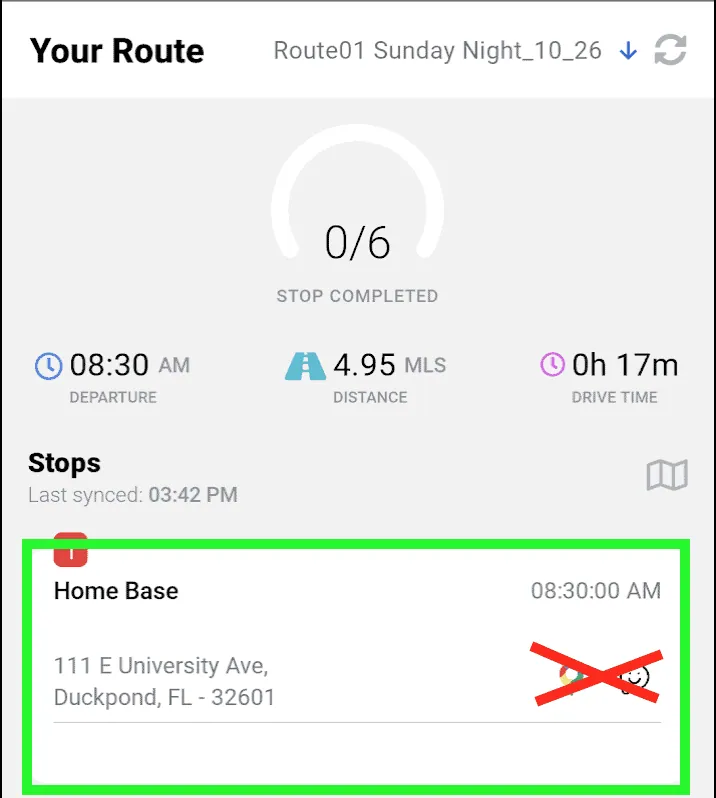
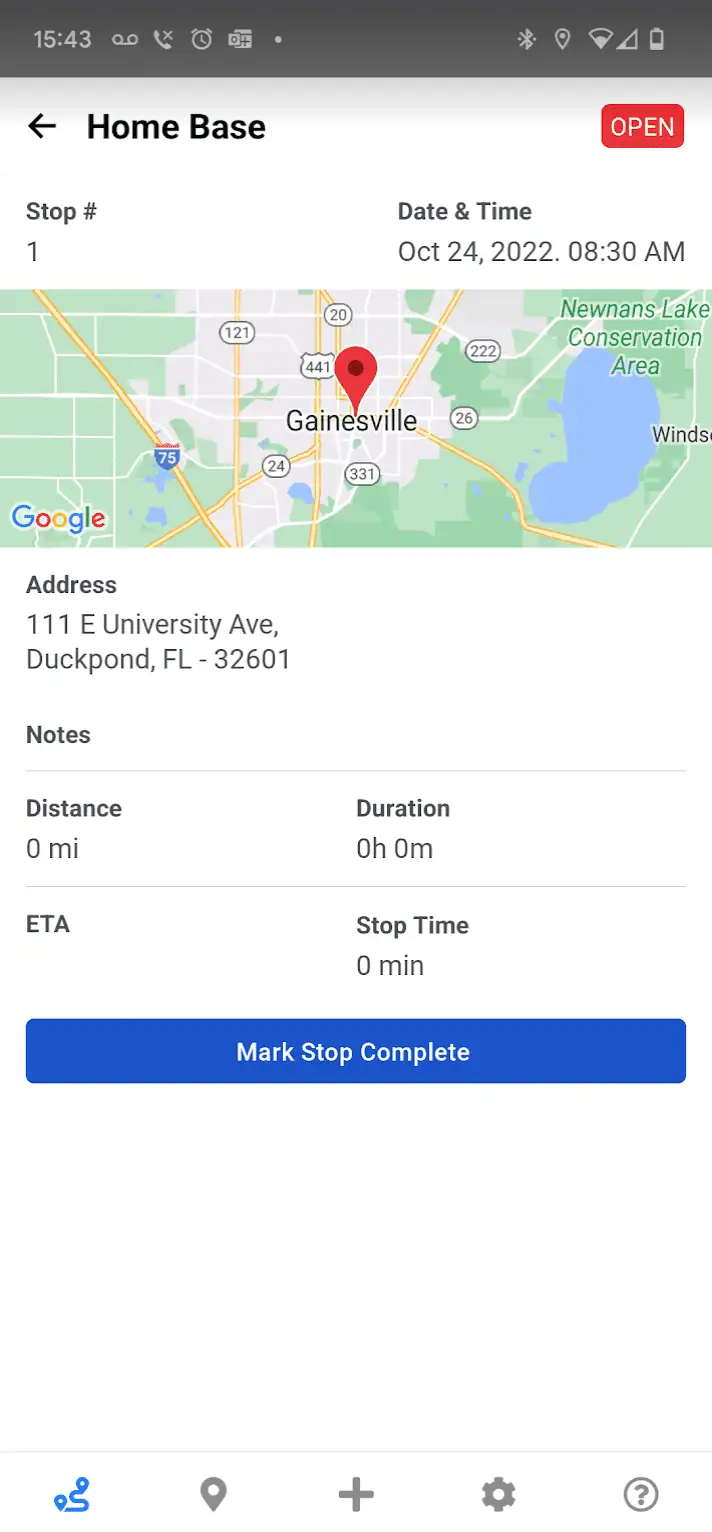
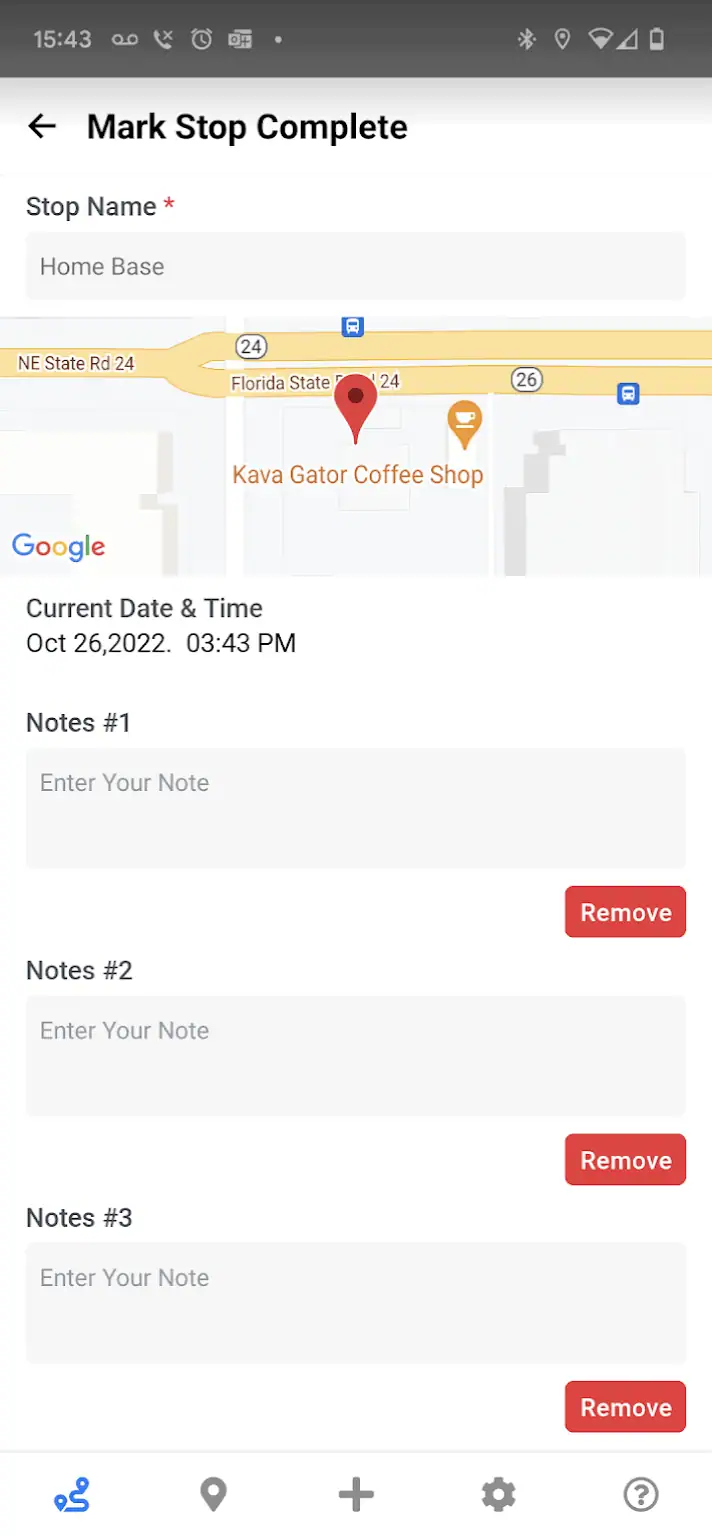
- On the next screen, you can add notes and enter signature and photo Proof Of Delivery (POD). Press the Save button to upload your information.
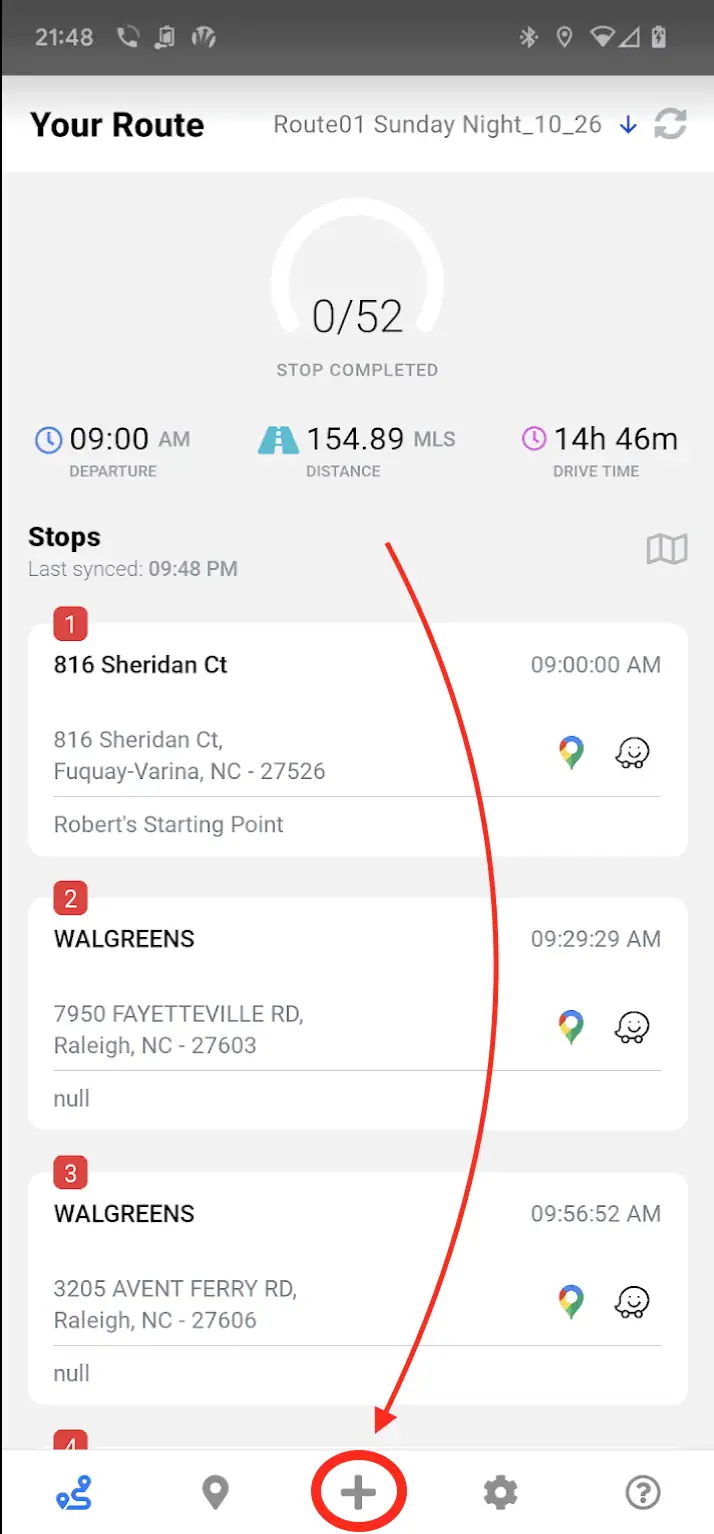
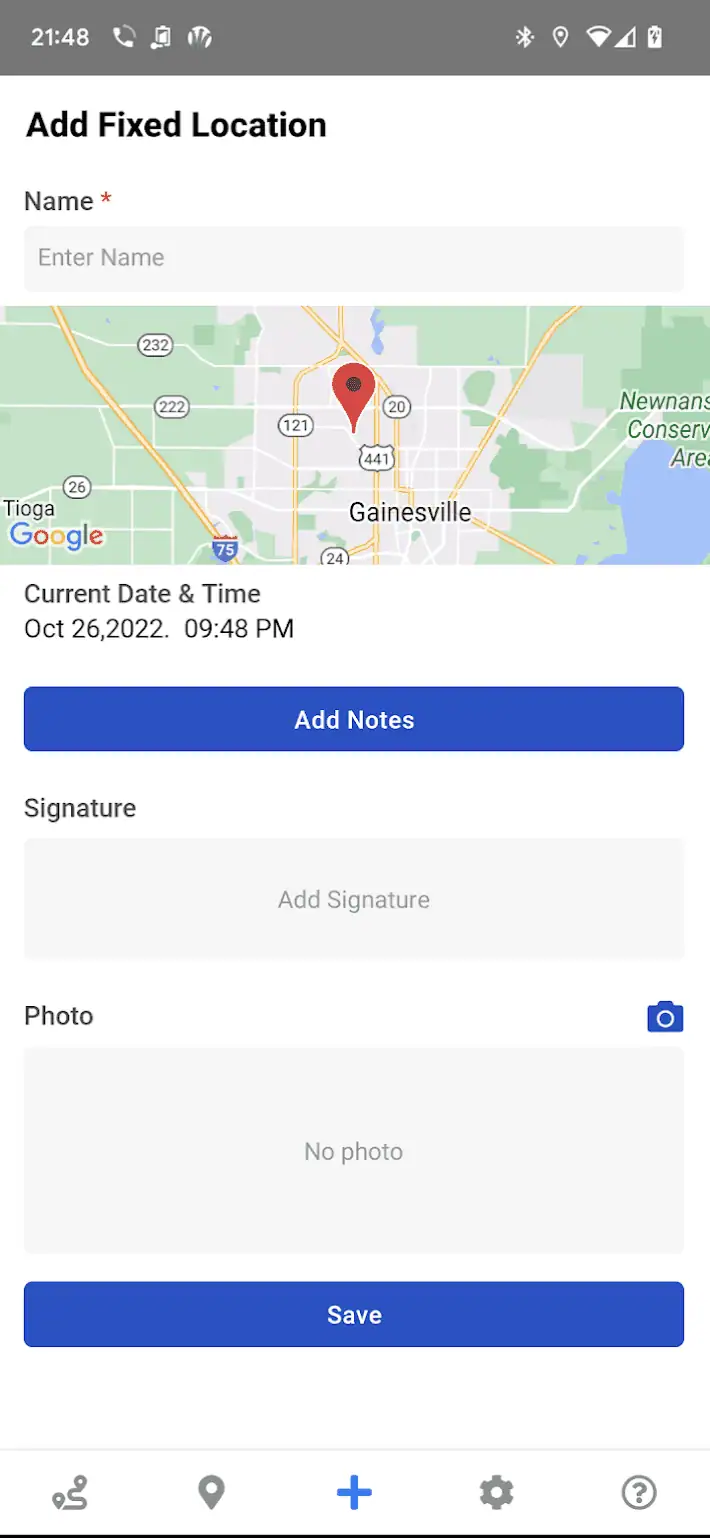
- Also, at any time, press the "+" icon at the bottom of the screen to add a Fixed Location. A fixed location is a location that you want to bring to the attention of the route planner back in the office, so you might note the location of a company-owned asset, or a prospective customer that is not yet in the system. Press the Save button to upload the Location Name, coordinates, and any notes, signature, or photo that was captured.
Support
If you are having issues with the RouteSavvy mobile app, choose the Send Log to Server option in the advanced settings and contact support@routesavvy.com for support.