

The Route Planner tab is the second tab from the left; it contains all the routing-specific options and functions.
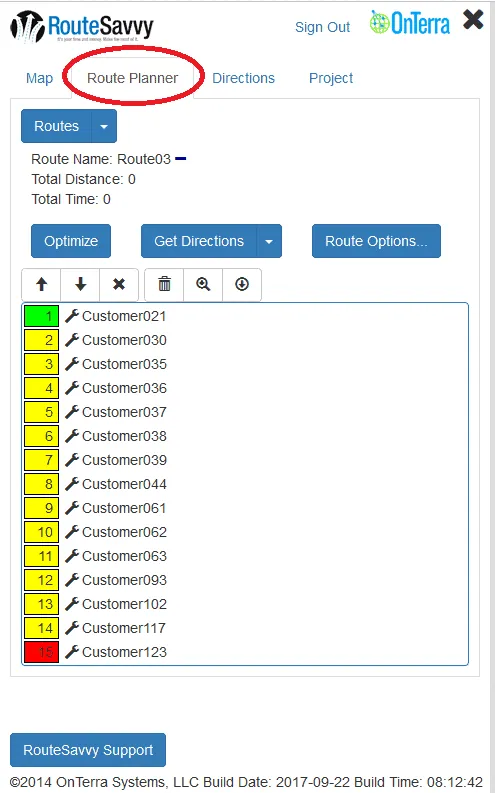
Routes drop down – Allows you to change the active route, add new routes, edit routes, delete routes, and copy routes.
New Route - Create a new route.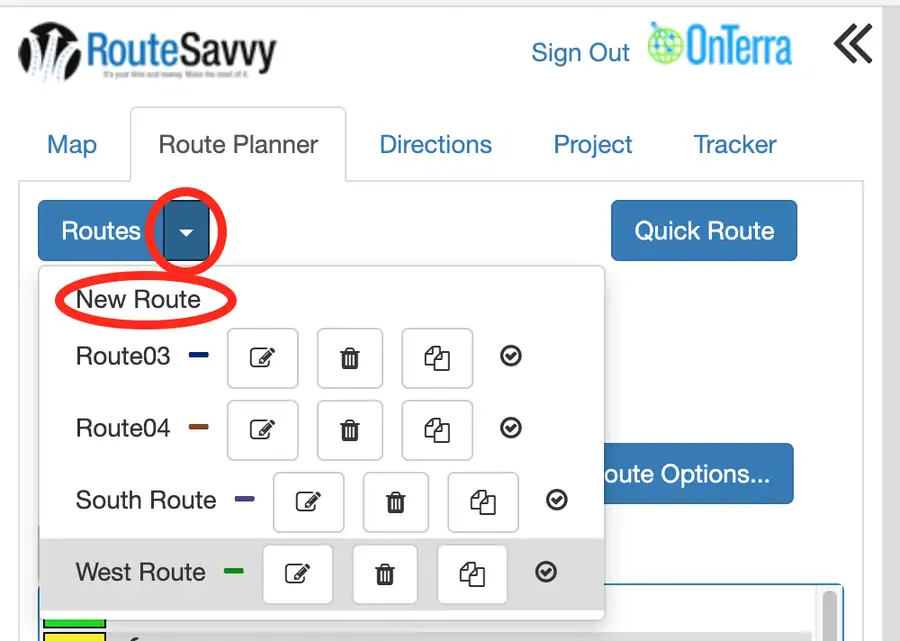
Edit Route - Change the route name and color of the route line.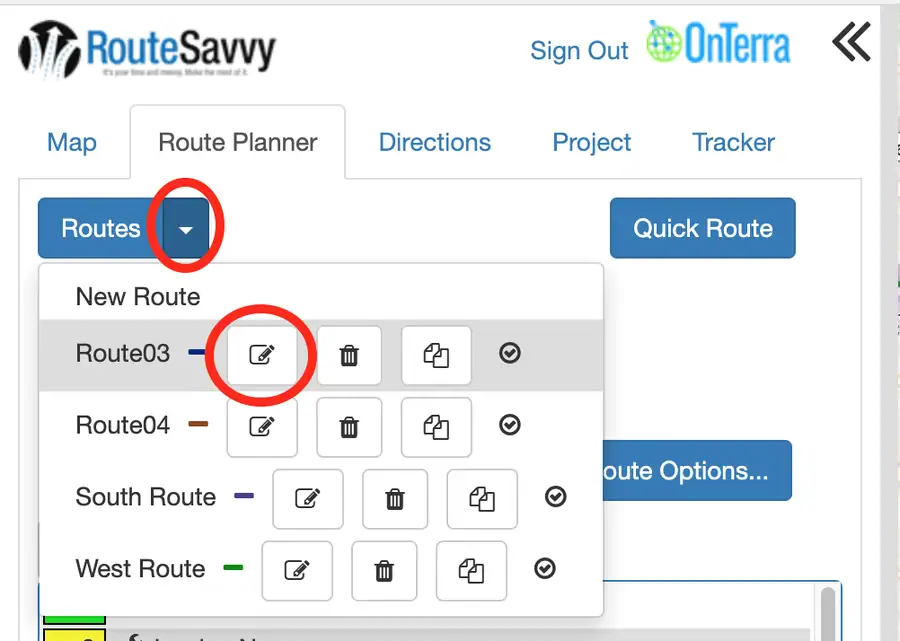
Delete Route - Completely delete the route. This is a permanent action.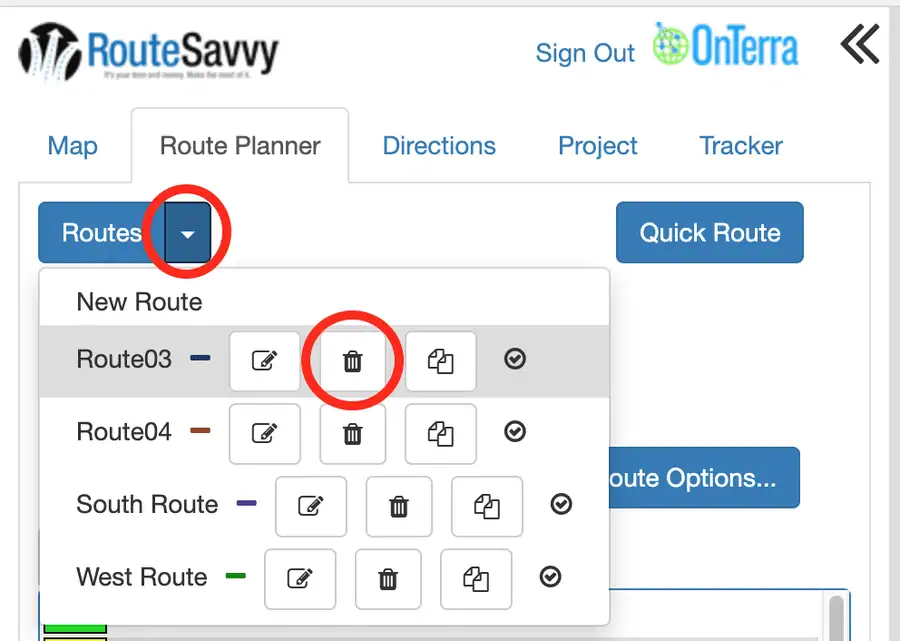
Copy Route - Duplicate the route. This is useful if you have many similar routes, you can duplicate a route to use as a starting point and then make changes.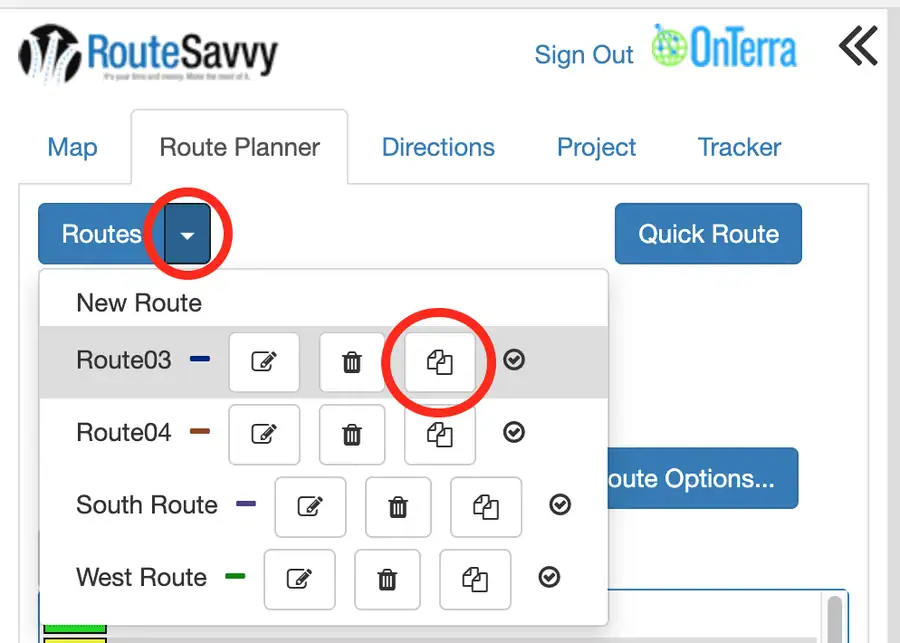
Optimize button – Optimizes the route using either the shortest distance or the shortest time, depending on the route options selected.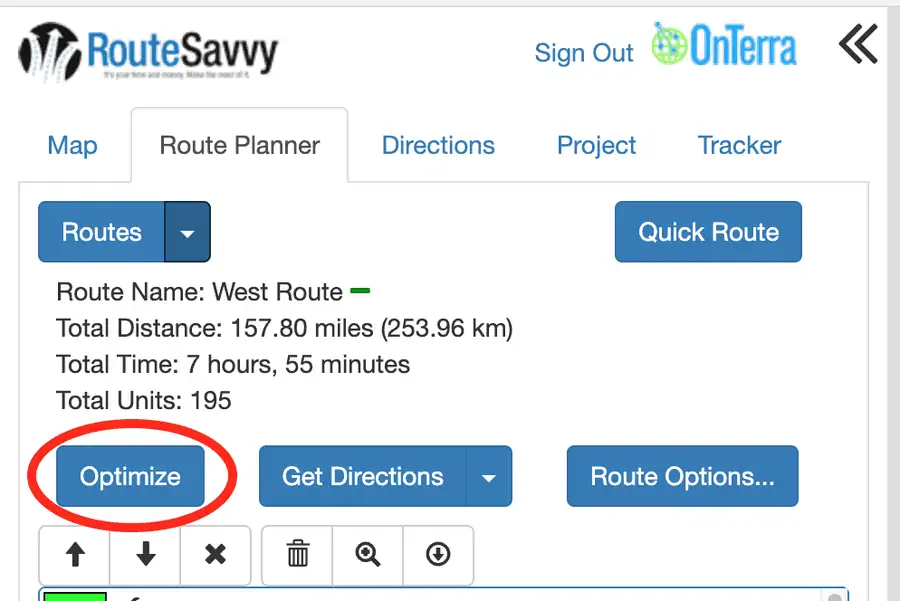
Optimize All Routes button - Access this option from the drop-down arrow on the "Optimize" button. This will balance all of the stops on the Route Planner tab across all of the routes that you have created. The basic RouteSavvy subscription includes 5 multi-route optimizations per day. You may want to save your project before you try this option, as it cannot be undone.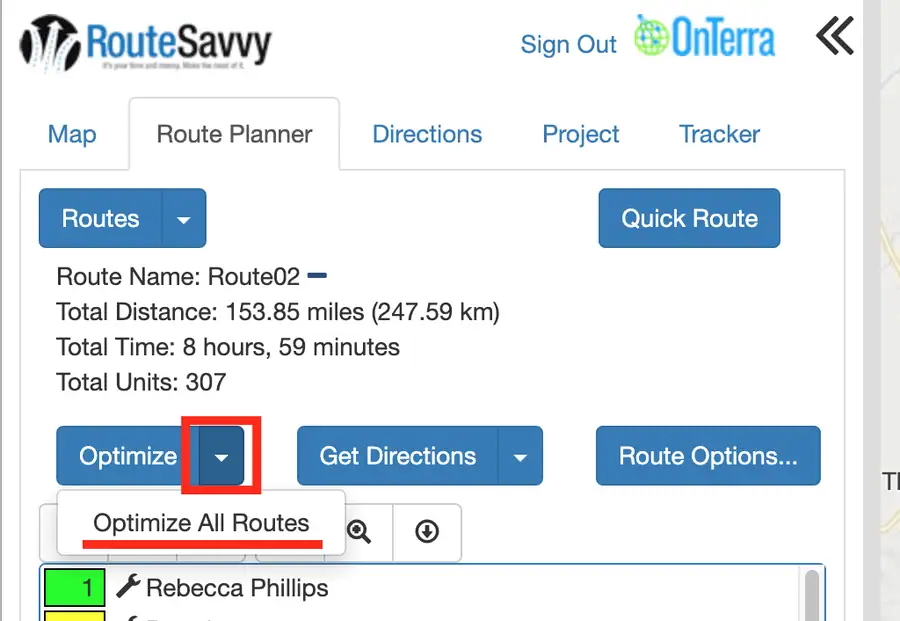
Get Directions button – Simply updates the route directions and times, but does not re-optimize. This is useful if you have been manually changing the stop order.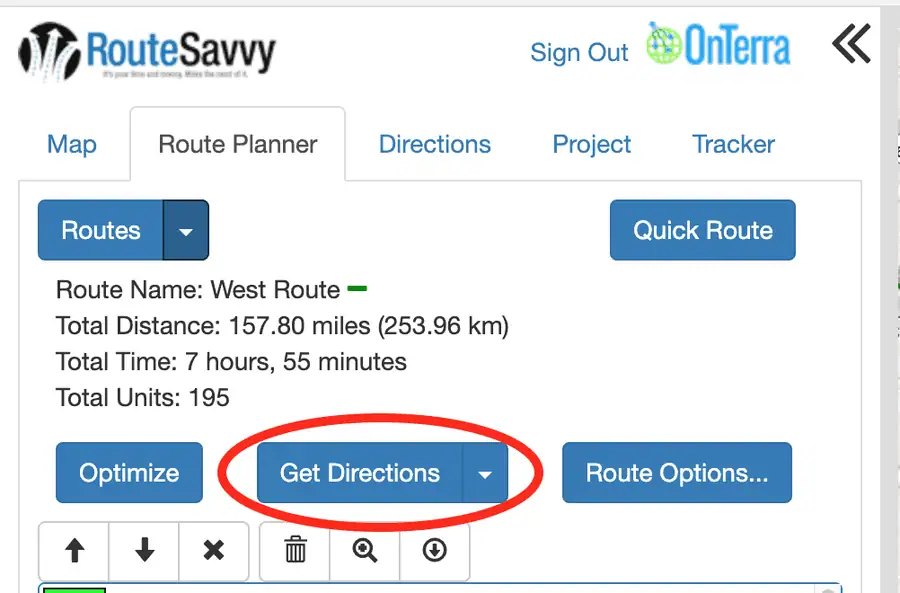
Route Options button – Allows you to review and edit route options for the active route, such as start time, shortest time vs. shortest distance, and avoid highways and avoid tolls options.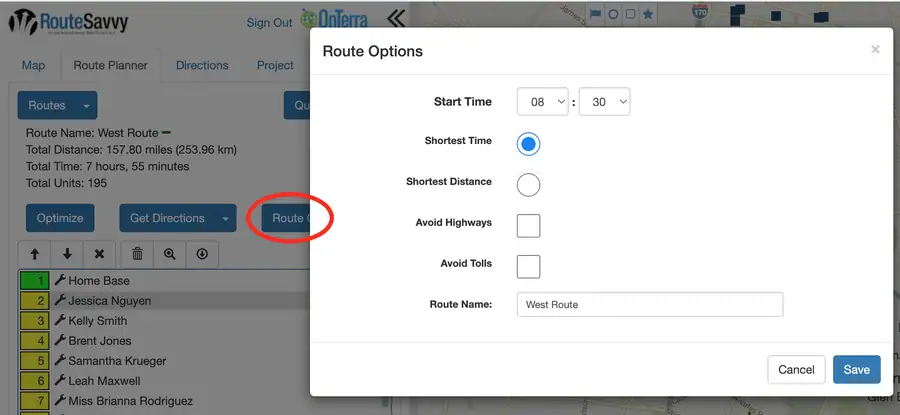
Up/down arrows – Allows you to move the selected (highlighted) stop up or down in the list of stops.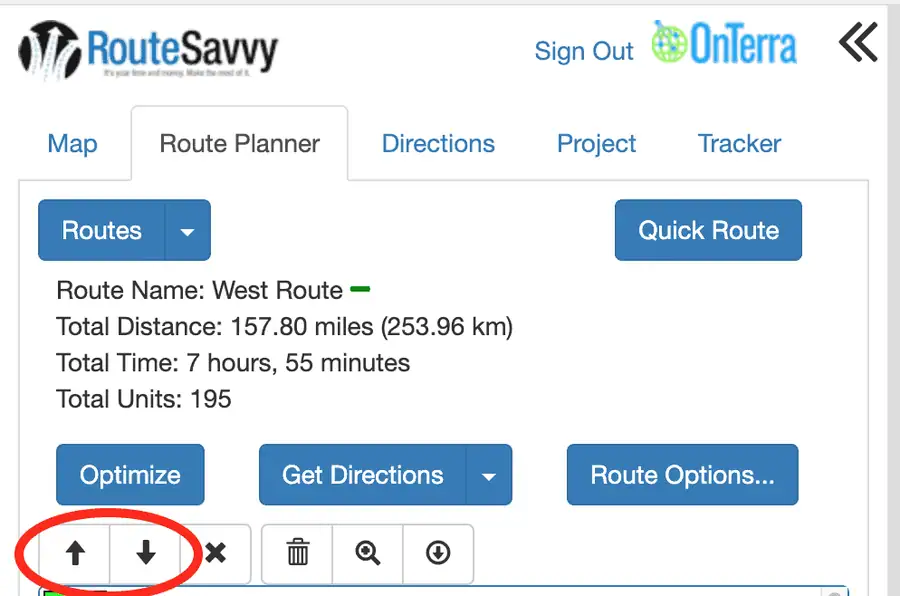
 icon – Allows you to remove the selected stop from the route.
This does not delete the original location from the map or the Map tab.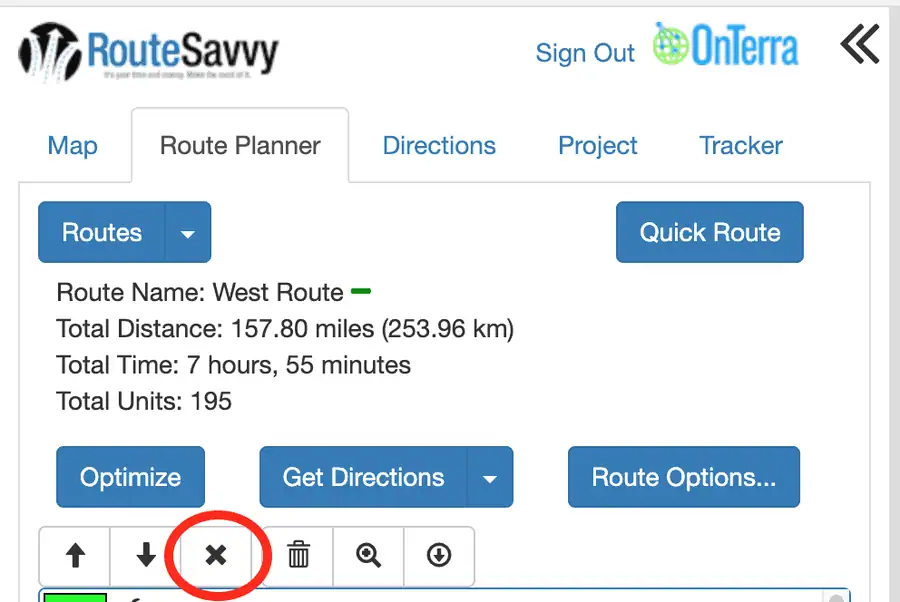
 icon – Allows you to remove ALL stops from the active route.
This is a permanent action, there is no "undo" button.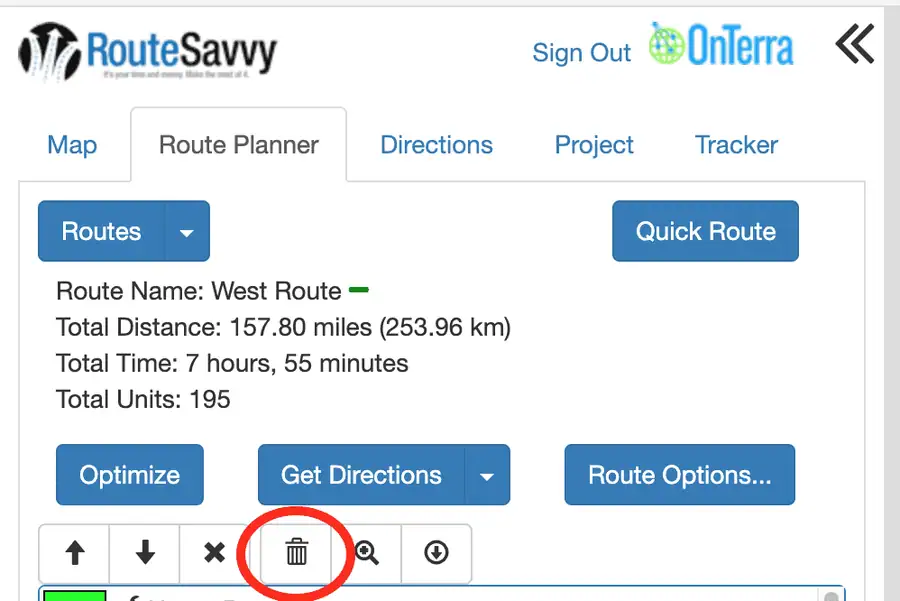
 icon – Allows you to zoom to ALL stops in the active route.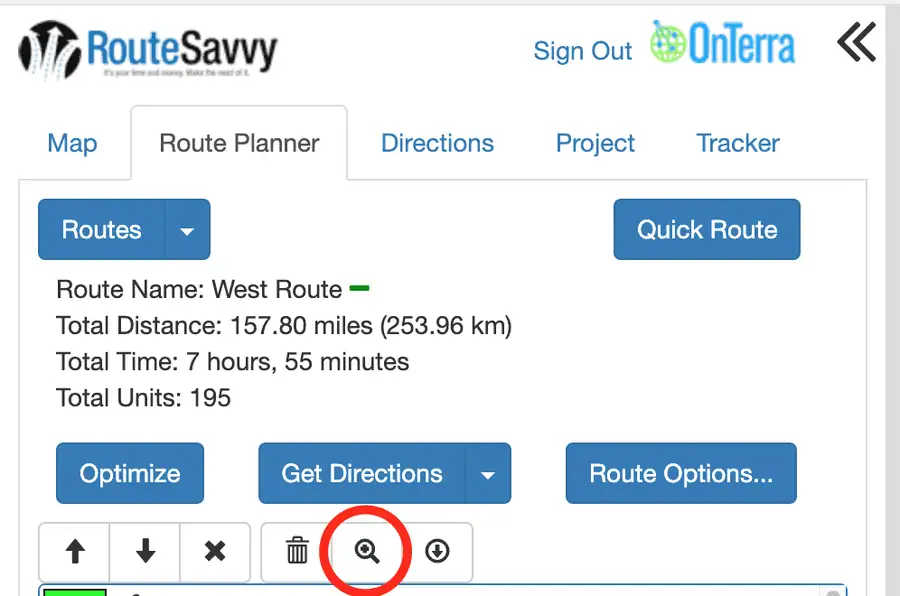
 icon – Allows you to download all stops in their current order as a CSV.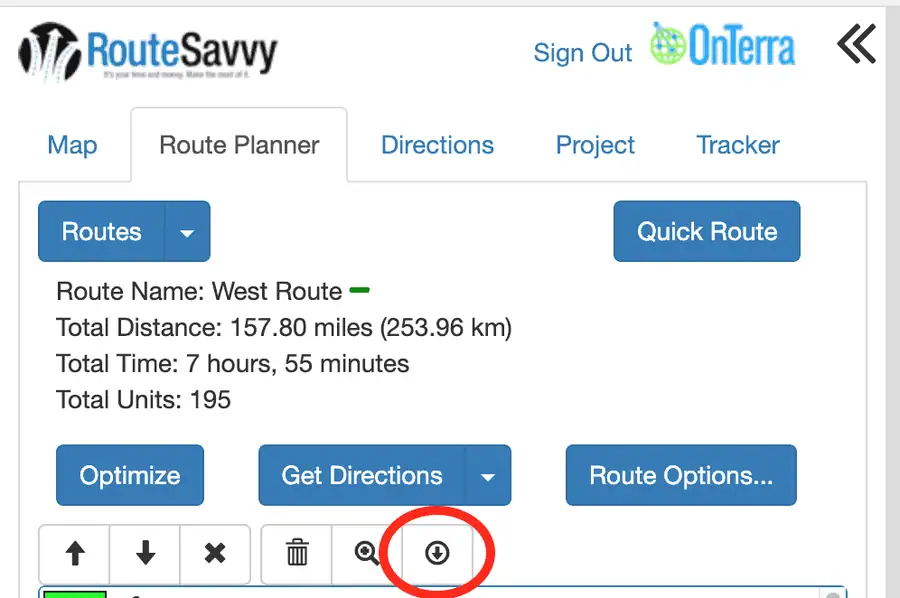

Individual Stop – Displays the current stop position. Right click or left click wrench icon to access stop actions and properties.
Stop Wrench Menu
Click the Wrench icon next to any stop to access the following additional actions for each stop.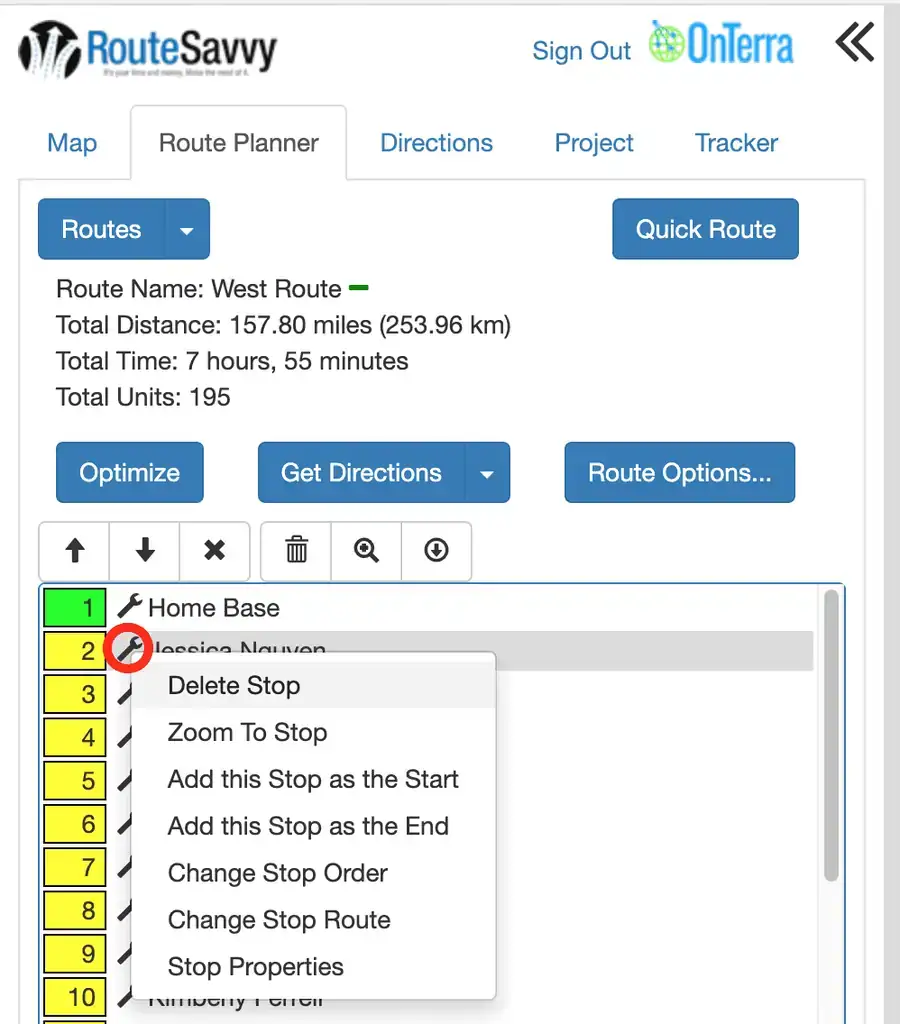
Delete Stop - Deletes the stop from the Route. This does NOT delete the underlying location, nor does it delete the stop from any other Route.
Zoom to Stop - Centers the stop on the map.
Add this Stop as the Start - Copies the stop to the #1 position in the Route, making it the start.
Add this Stop as the End - Copies the stop to the last position in the Route, making it the end.
Change Stop Order - Allows you to change the order of the stop by number, so in this example you can change Stop #2 to be any other stop number in the Route.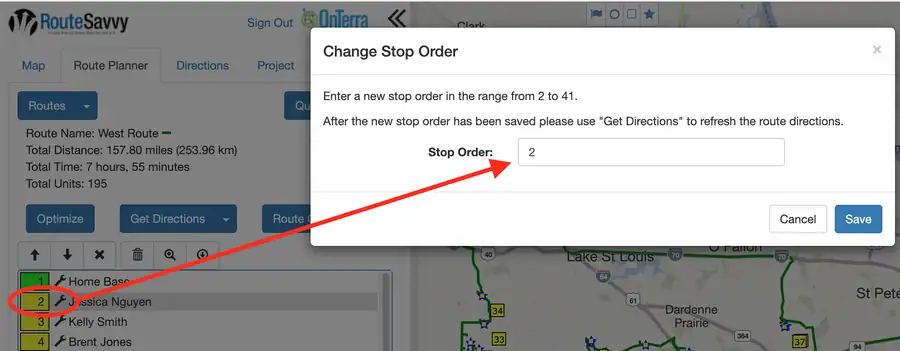
Change Stop Route - Allows you to delete the stop from the current Route and add it to another Route in one simple step.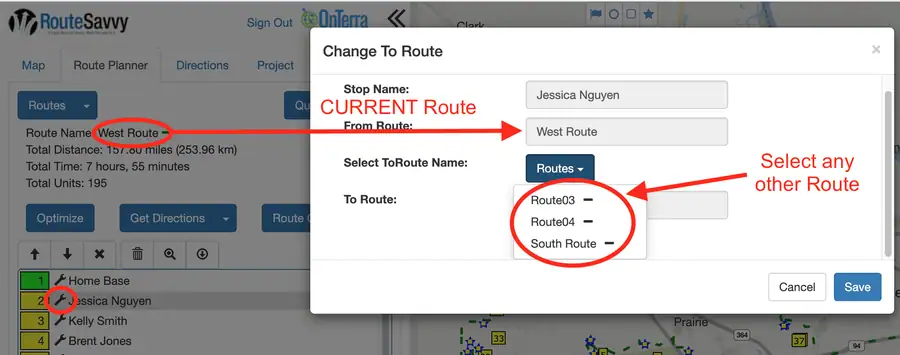
Stop Properties - Change Stop Units, Stop Time, Notes, etc. for the stop.
Note: This does not change any information on the original location, it only changes this stop on this route.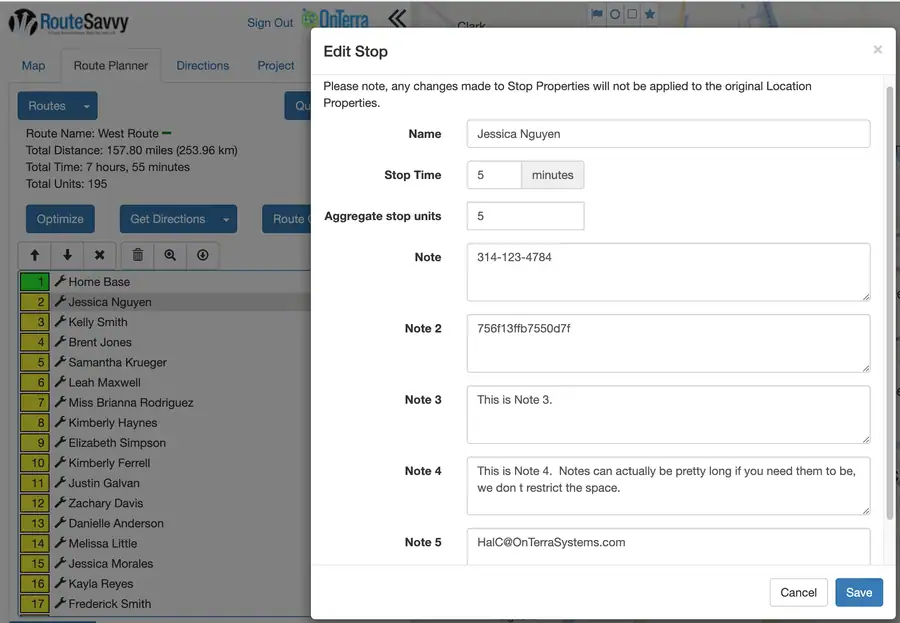
If you have questions contact RouteSavvy Support.