

Once you add addresses to RouteSavvy, they become Locations, and there are many actions that can be performed on locations within the RouteSavvy software. Please note that Locations and Stops are 2 different things, this will be explained in more detail. There are 2 ways to access location actions.
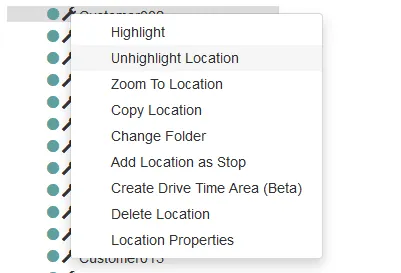
- From the folder, either right-click the location name in the list or left-click the wrench icon.
2. From the location icon on the map, either right- or left-click the map icon.
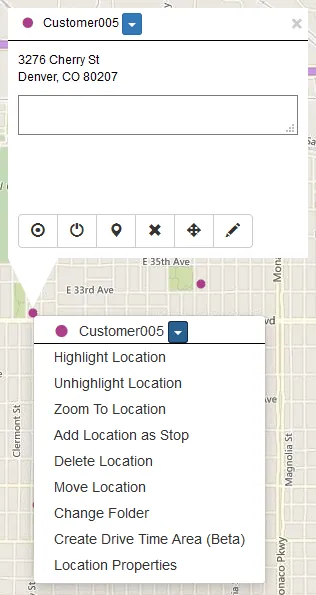
Location Actions vary slightly in each menu.
Highlight Location ( )- Adds a circular yellow highlight to the map icon and yellow highlight to the folder item.

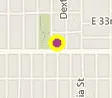
Unhighlight Location ( ) – Removes highlight.
Zoom to Location – Zoom the map to center on that location.
Change Folder – Opens a Folder Properties dialog allowing the location to be moved into an existing folder.
Add Location as Stop ( ) – Adds individual location as a stop on the current active route. See Route Planner section.
Delete Location ( ) – Removes the location from both the menu and the map. Caution – this action permanently deletes the location from RouteSavvy and cannot be undone.
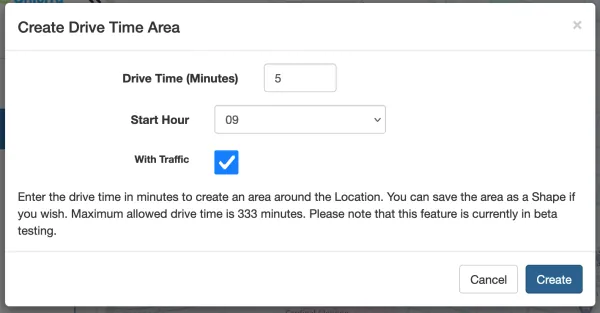
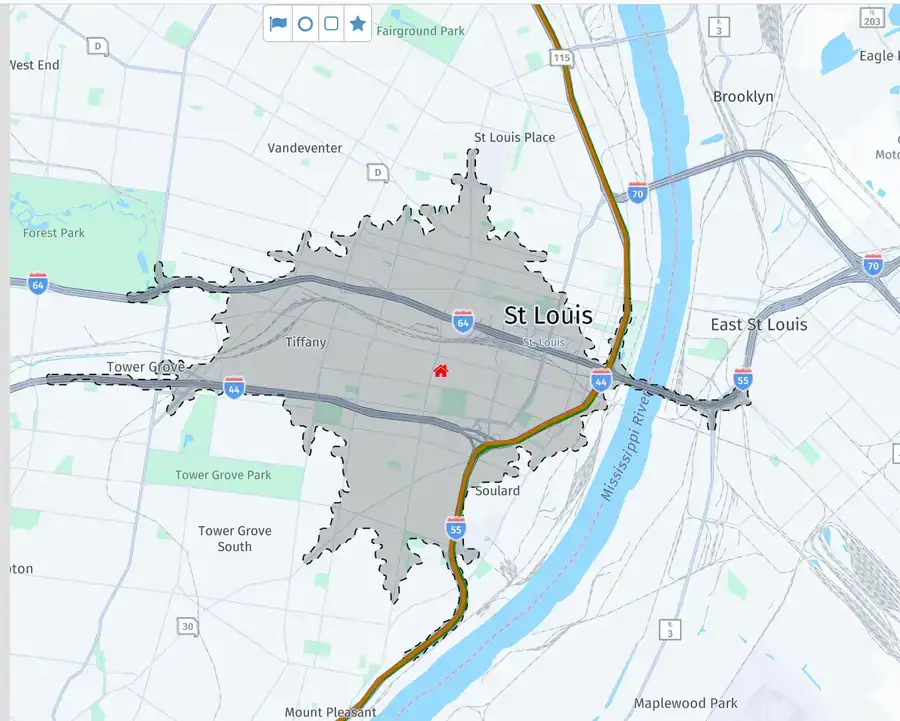
Create Drive Time Area – Creates a shape showing possible drive boundary for a given amount of time. Enter the desired drive time in minutes and then click "Create".
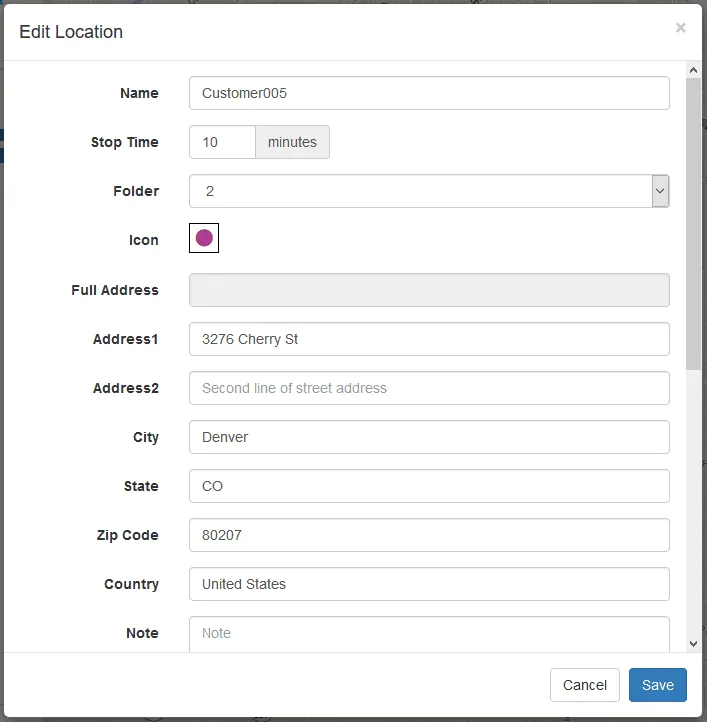
Location Properties ( )- Opens the edit location dialog where you can edit name, address, stop time, notes etc.
Move Location (Only in map menus) ( ) – Will allow the location to be move by clicking elsewhere on the map, this will use the new lat/long and update the address.
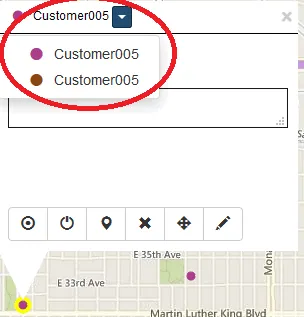
Multiple Locations at the Same Address – If multiple locations have the exact same address the icon will display at the same location. You can select different locations from the folder list or use the location drop down. This can be useful if there are different customers at the same address hence they have a different suite number in Address2 or if you need to plan multiple visits to the same location.
This drop-down menu also displays Stops if a stop has been created from that address.
If you have questions contact RouteSavvy Support.